Currently Empty: £ 0.00
Accessing Push Teacher Tuitions
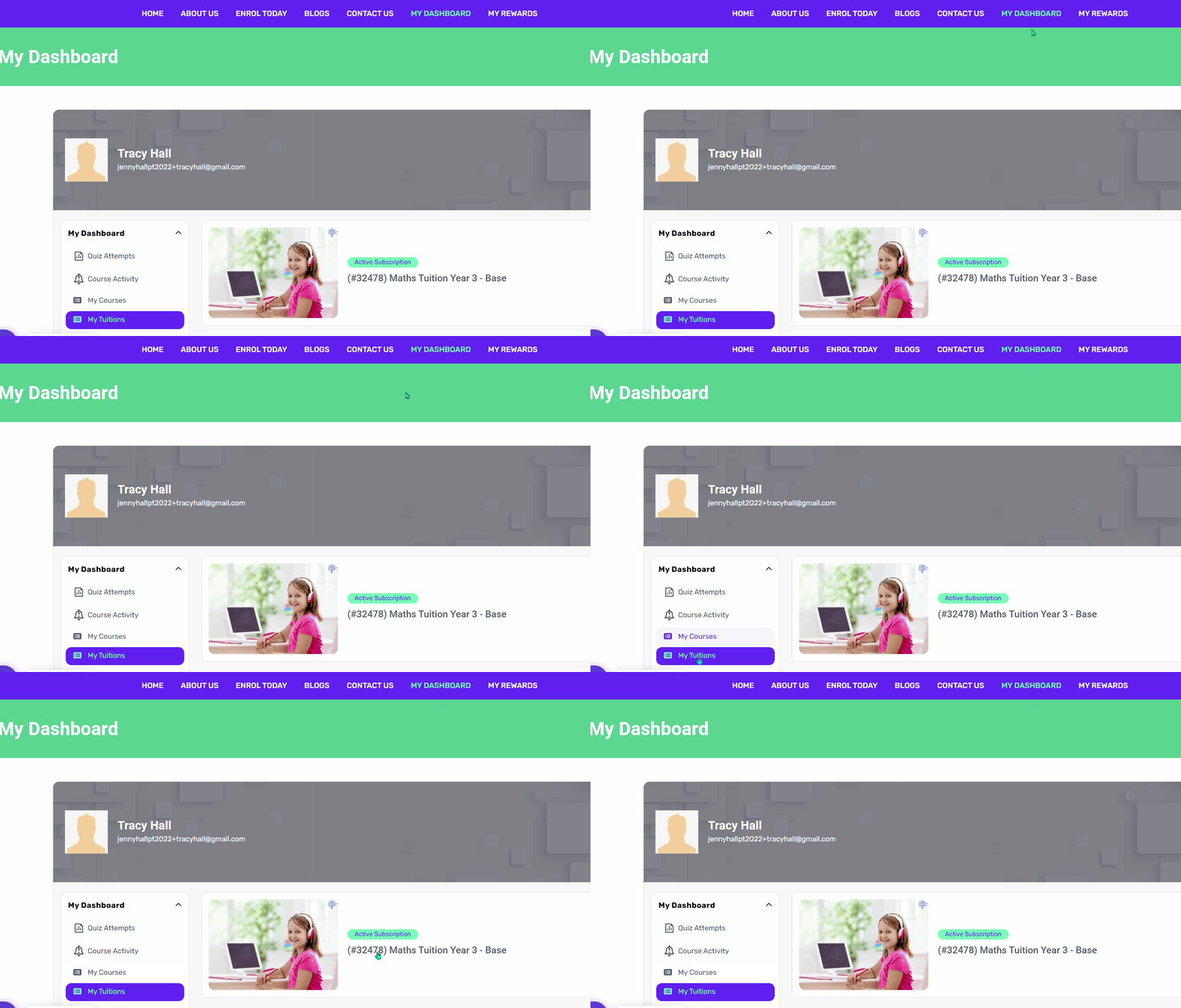
To start your learning journey, please log in using your child/student user ID and password. Once signed in, head to My Dashboard → My Tuitions to see all the Tuitions your child is subscribed to.
If you are not sure of your child id, Parents can logon with their email/password and Go to My Dashbaord>My Children , where they can check child user id.Â
You child password is the one you did set during enrolment, however if you don’t remember you can reset it by clicking Forgot Password.
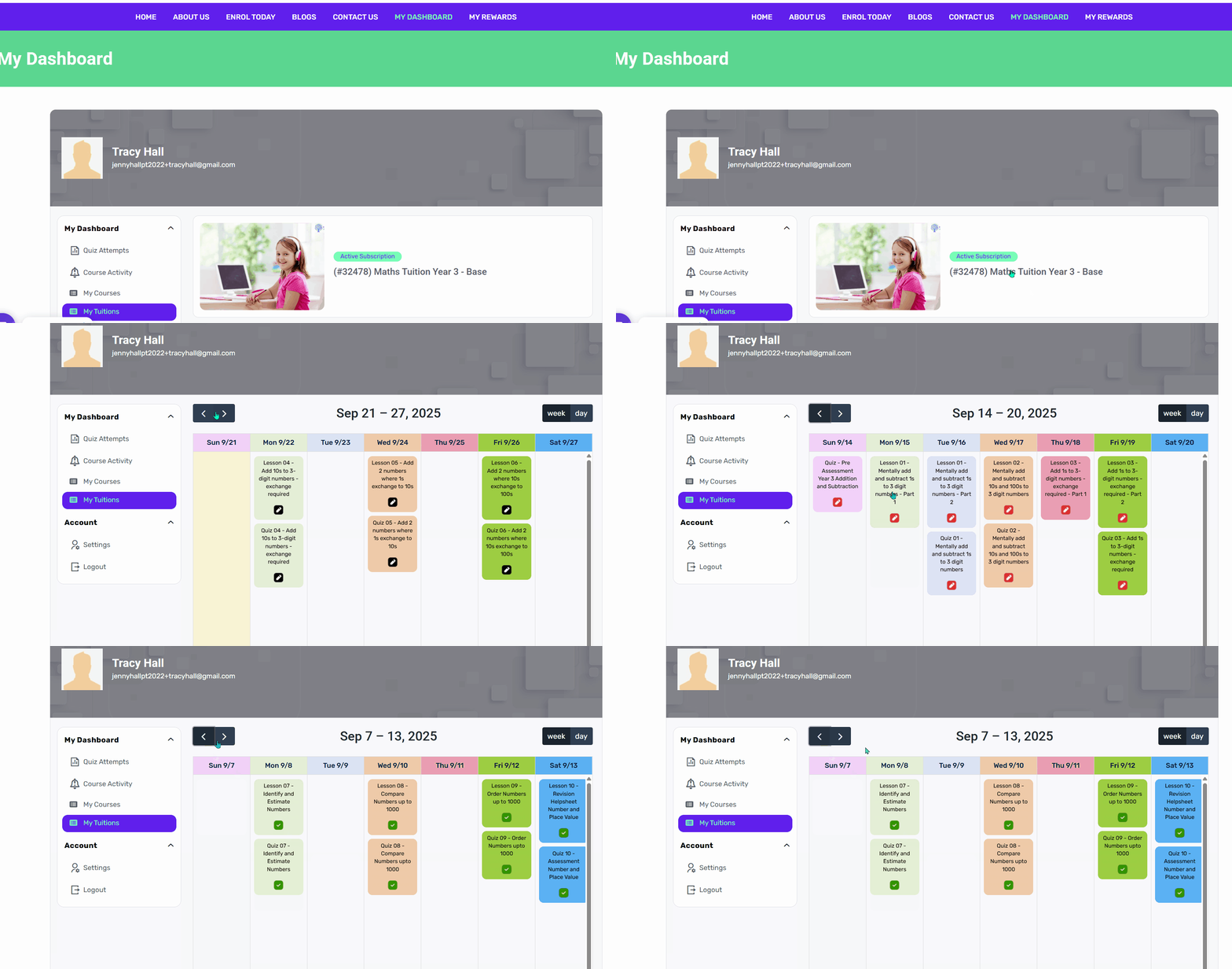
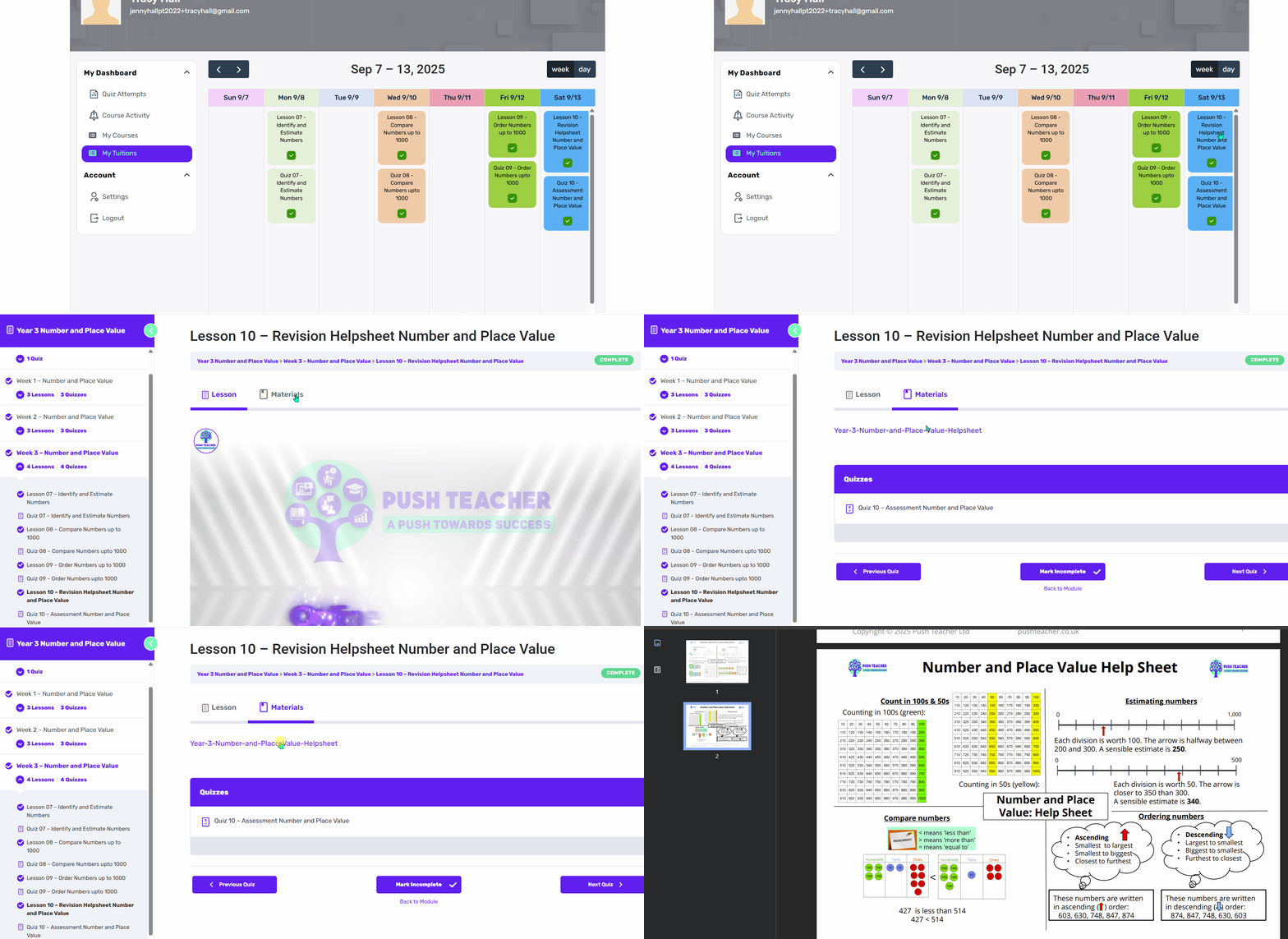
Weekly Calendar View
When you click your Tuition, you’ll see your ‘Weekly Calendar’ which will be filled
with tasks.
Each task has a symbol:
✅    Task is complete
   Task is due today
   Task is overdue
   Task is due in the future
You should complete the tasks in the order that is described on the calendar, as often, the skills from one lesson are really important to help you progress to the skills in the next lesson. Parents will be notified of all your lessons in advance so that they know what maths you are working on! Our Teachers will keep an eye on how you are doing and will assign additional lessons and quizzes based on your quiz scores.
Topic Plan
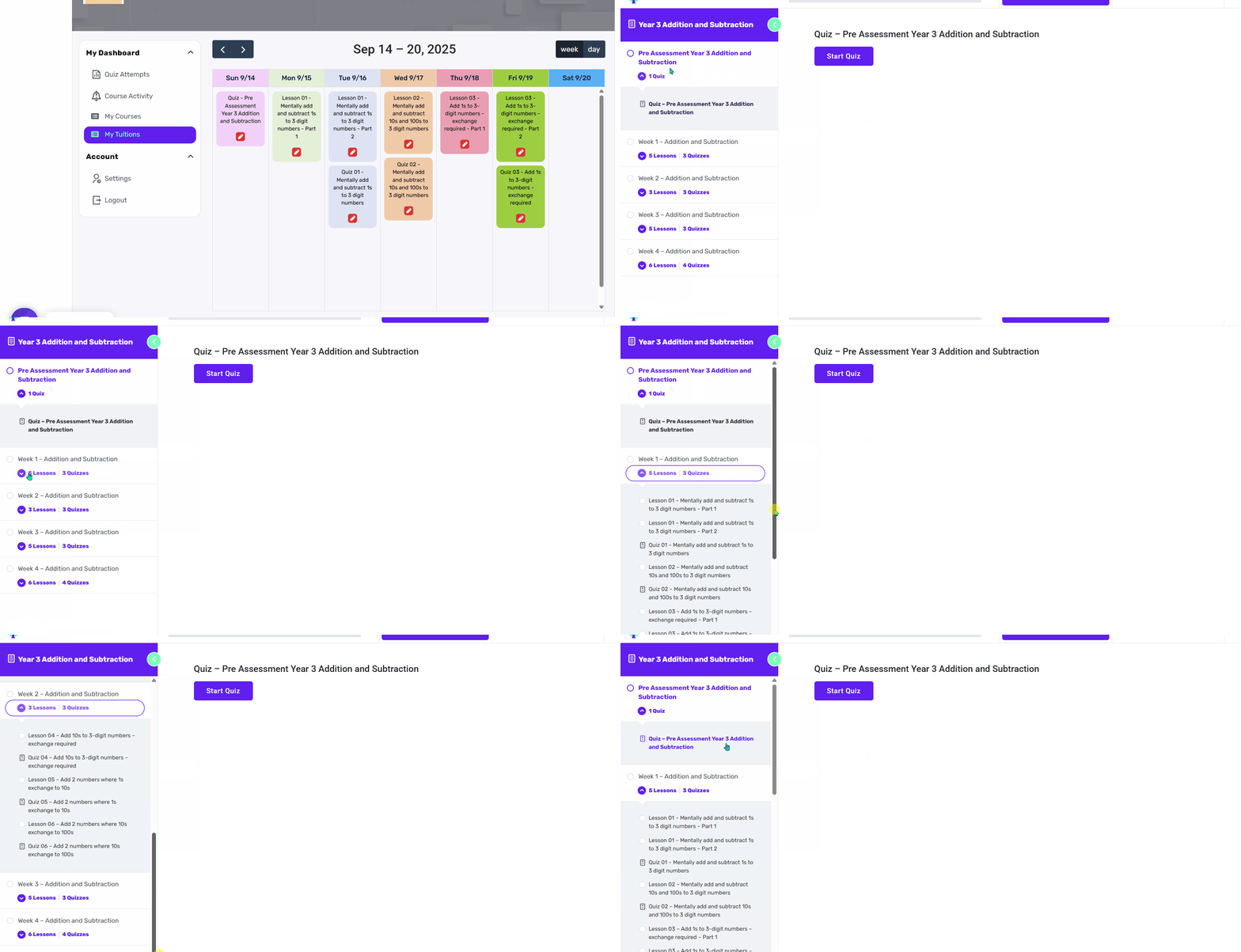
When you click on that task either Quiz or Lesson.
You can see the complete topic plan for each week. Push Teacher has a structured program which covers the curriculum topic by topic, so it is really important to work through the lessons in the correct order! Each topic has a ‘Pre- Assessment Module’ and then a module for each week. The ‘Pre-Assessment Module’ only has a quiz, which is normally about 25 questions long – this helps us to assess your knowledge on the topic and allows us to really personalize your learning to suit you! In each weekly module, you have lessons with quizzes that are linked to each of them.
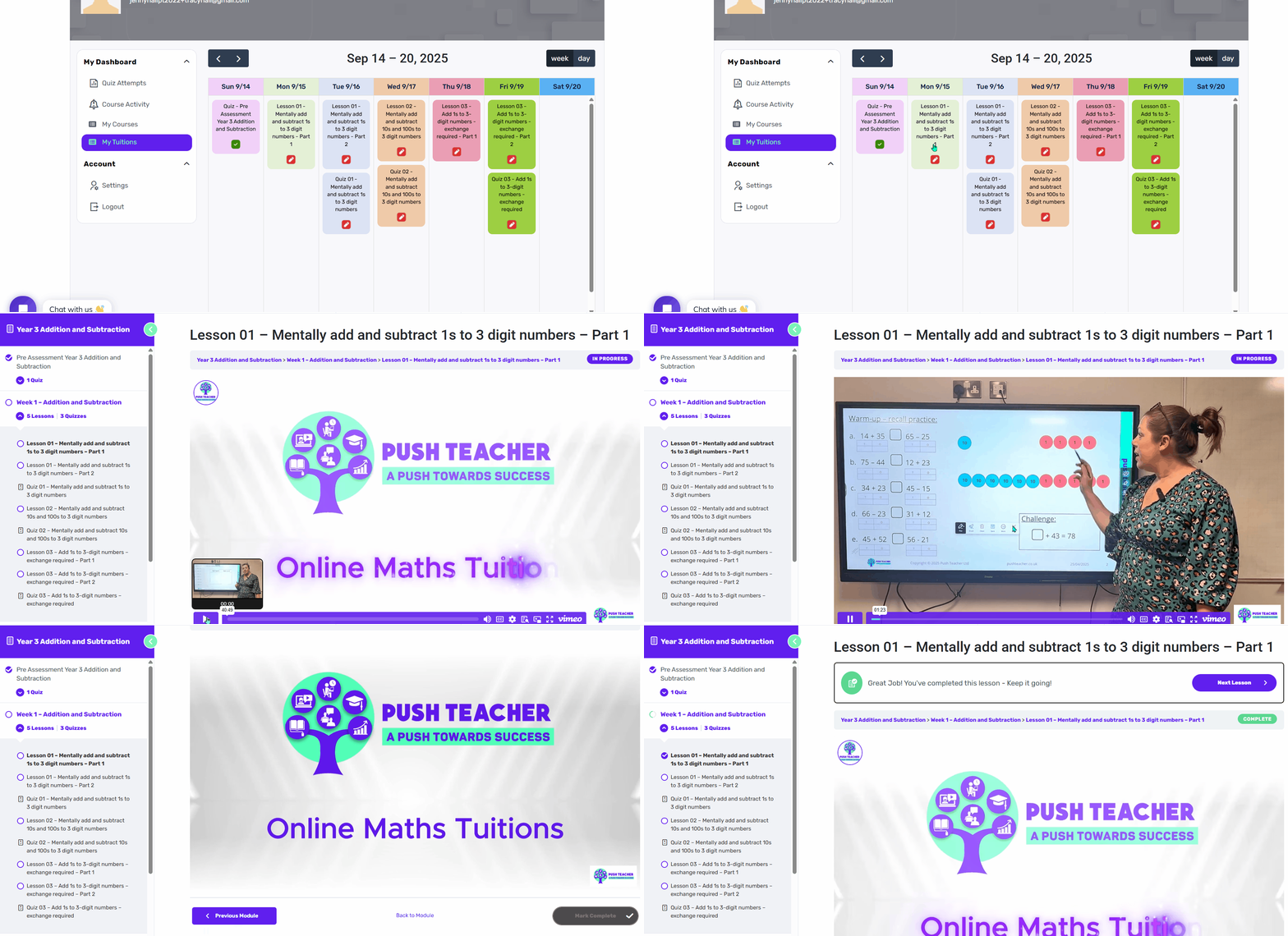
Watching Video Lessons
When you click on a Lesson, a video will be launched. Don’t forget to unmute the video and ensure you watch the video completely! All our videos are interactive – you will need to pause the video when you are asked to by the Teacher (that’s me!). Make sure that you try the tasks and also correct any mistakes as explained by the Teacher. Once you have watched the complete video. After watching the video, the associated quiz will be automatically unlocked for you to attempt. If the Lesson doesn’t have a quiz, the Mark Complete button will appear. Please Mark complete and move to the next lesson.
Quiz
The quizzes that follow each lesson normally have 10-12 questions. Take your time to read the questions carefully and type your answer in the answer box or choose the correct option from the multiple-choice list of answers.
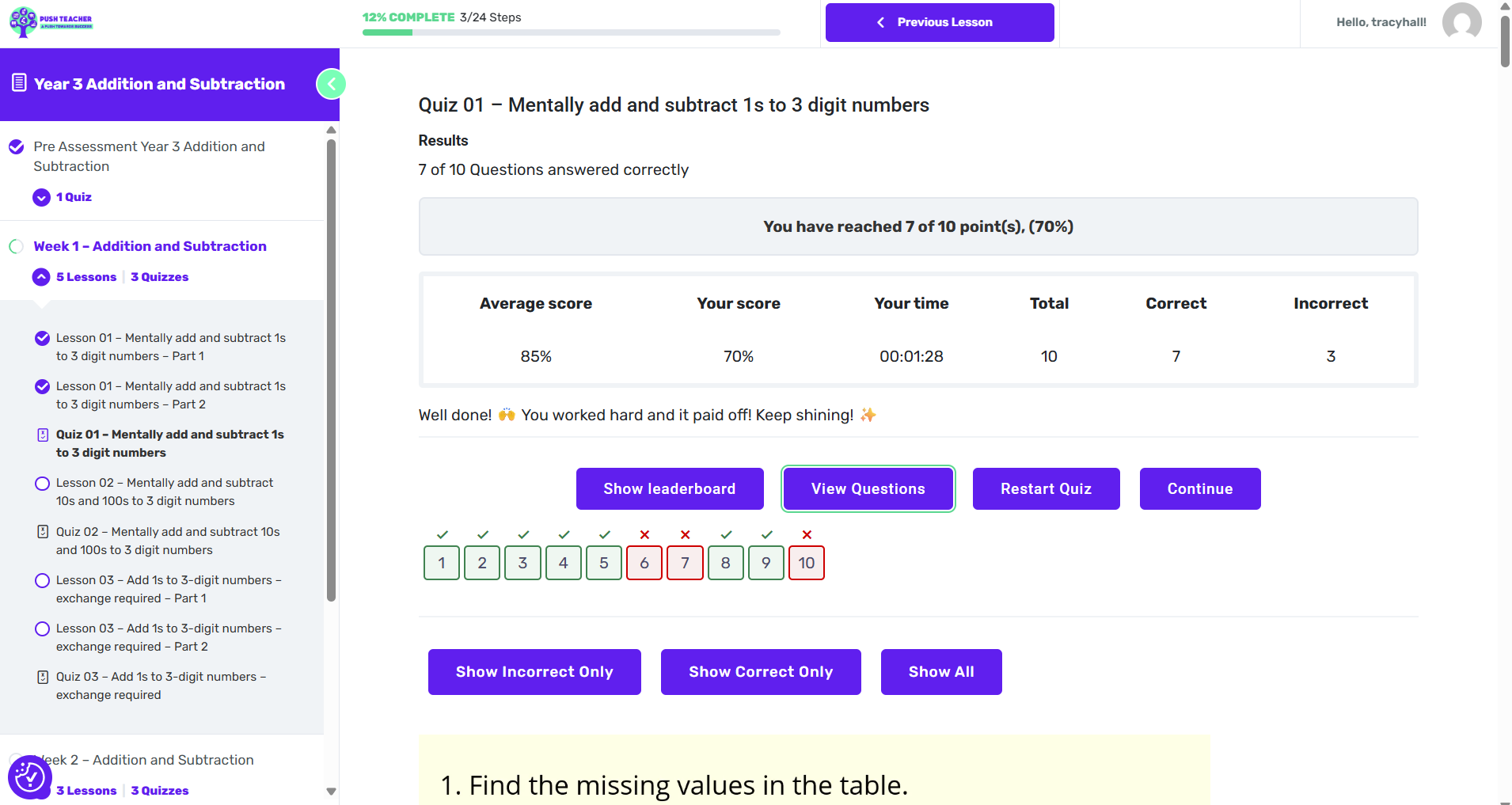
Once you’ve answered the questions on the quiz, you will see a screen with your results: this tells you your score, which questions you answered correctly or incorrectly, and how long you spent working on the quiz.
You can also view the Leaderboard by clicking on ‘the Leaderboard’.
If you click on ‘ View Questions’, this allows you to see the answer for each question and each question has a video explanation showing you how best to answer it!
You can filter the questions to show ‘Incorrect Only’ questions. You must watch the video explanation of each question you got incorrect. You are, of course, allowed to watch all the videos if you wish to.
If you got a score less than 70% in a quiz, you should attempt it again later after watching the videos. Great news….there is no limit to how many times you can attempt the quiz, so you can keep going until you achieve a score that you are happy with!
Revision Help sheet
At the end of each topic, there is a ‘Revision Helpsheet Lesson’ where you can access the help sheet and keep it for revision. After watching this helpsheet lesson, you can attempt the Topic Assessment. Again, don’t forget to watch the video explanation of challenging questions, and just like with all the other quizzes, if you achieve less than 70% please have another go!
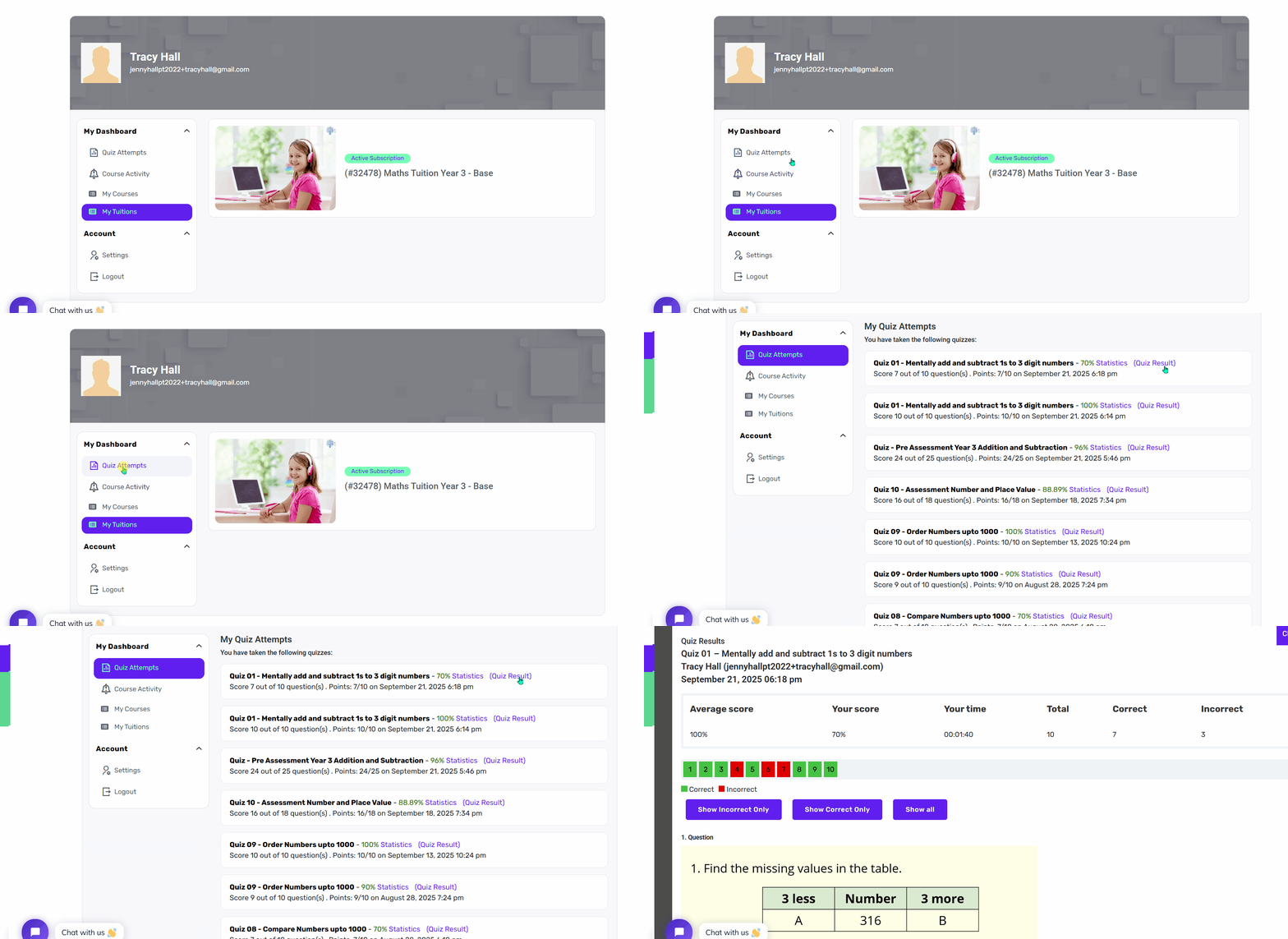
Quiz Attempts
If, at any point you wish to look back at quizzes that you have completed in the past, you can click ‘Quiz Attempts’ on the menu on the left of the page. This will allow you to see all of your past quiz results by clicking on ‘Quiz Results’ and you are able to go through the Video explanations anytime you like.